Monitor QLab from Windows
View cue lists, current playback, remaining time, Continue modes and cue colors from a Windows PC.
QLAB REMOTE FOR WINDOWS
Keep QLab on the Mac. Run the show from Windows.
Try it free for 7 days
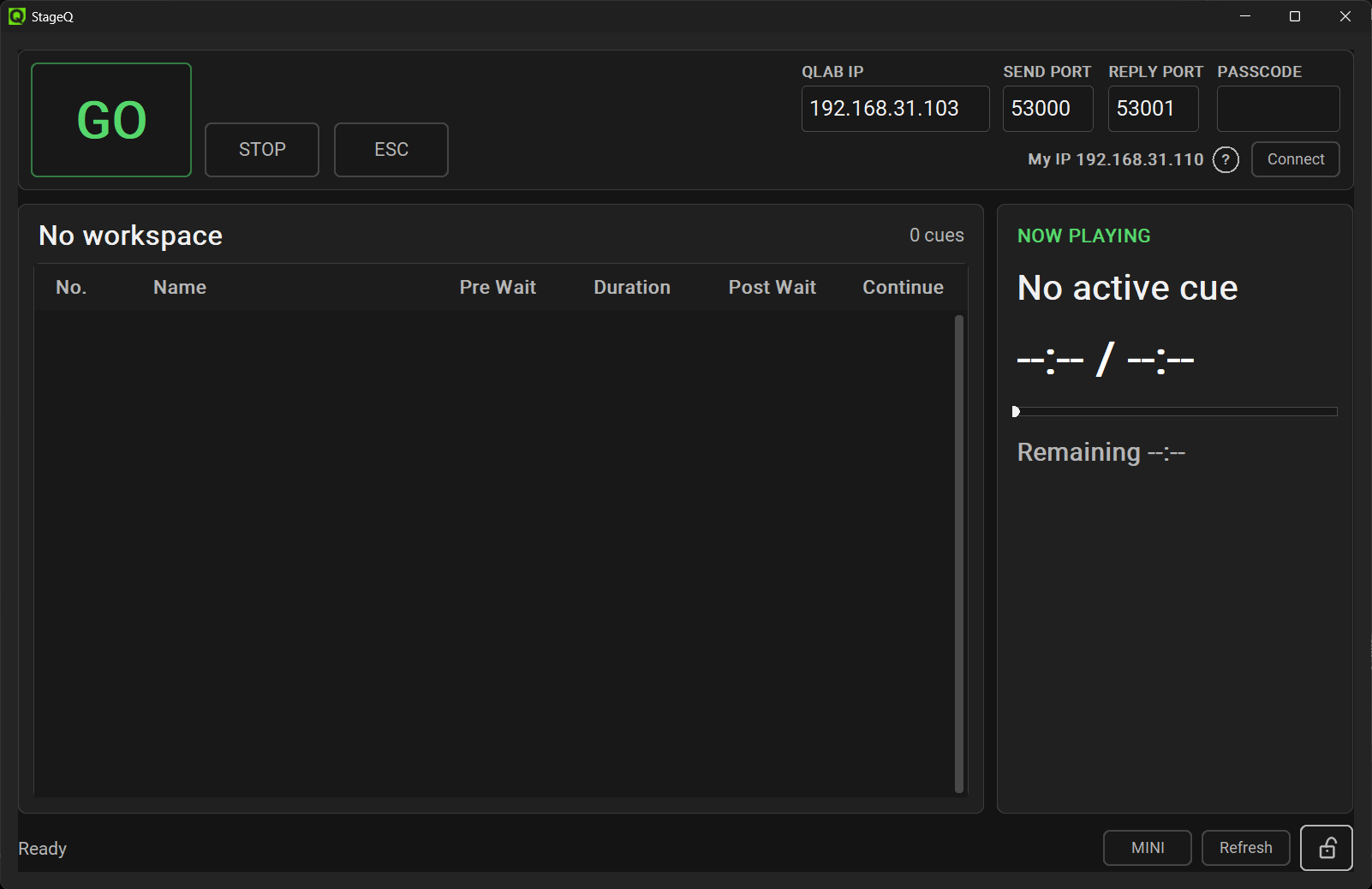
See the cue list, what is playing and how much time is left
GO, STOP and Panic are right where your hands are
01 / WHY STAGEQ
Leave the Mac by the stage, in the rack or backstage
From the house, tech desk or control booth, a Windows PC becomes your QLab watch screen and control surface
02 / QLAB REMOTE
StageQ is a QLab remote app for Windows, built for show control and cue monitoring while QLab 5 runs on the Mac
View cue lists, current playback, remaining time, Continue modes and cue colors from a Windows PC.
Put the Mac and Windows PC on the same network, enable OSC Access in QLab, and connect StageQ.
StageQ focuses on live operation, not editing, so the controls you need during the show stay clear.
03 / FEATURES
No editing clutter, no hunting around
Just the cue information and controls you need once the show is live
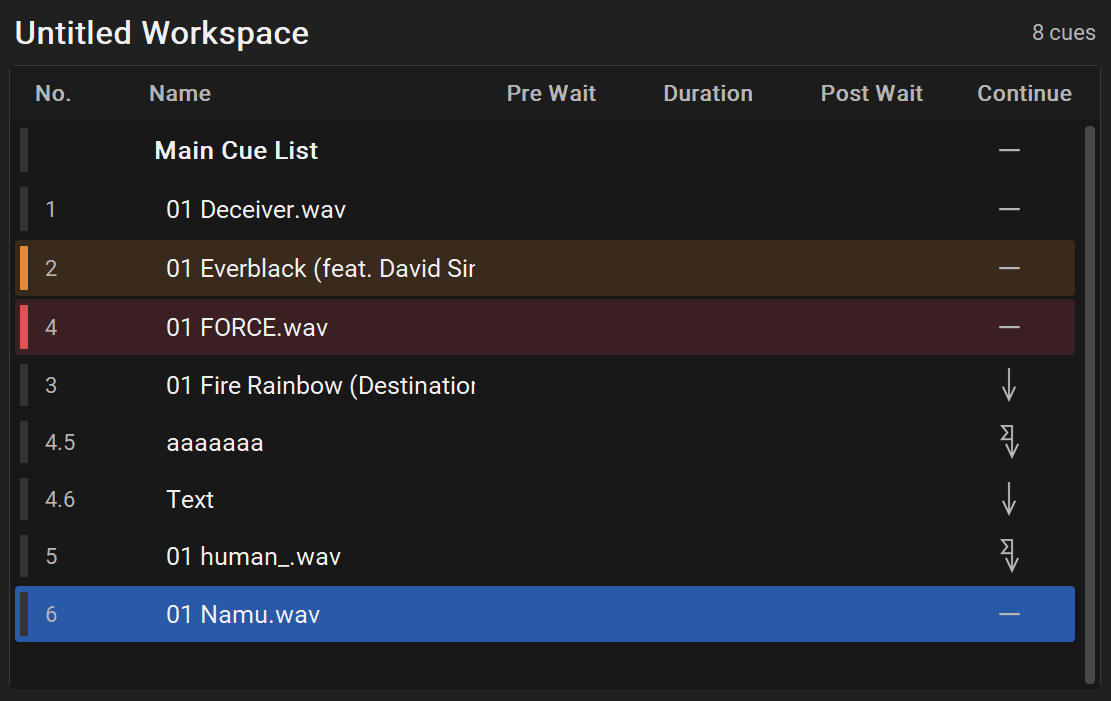
Cue numbers, names, durations, Continue modes and cue colors stay visible
Updates in QLab come through automatically
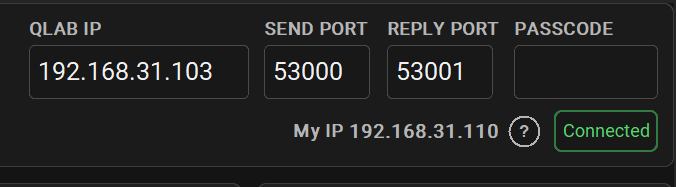
Select a cue in StageQ or in QLab and the other screen follows
No more wondering which cue you are on
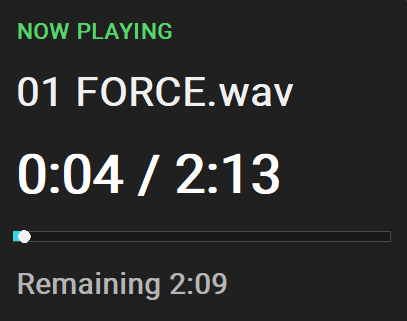
See what is playing, how far in you are and what time remains
Perfect for quick checks during a busy cue stack

GO, STOP, Panic and cue selection are kept simple
Big, clear controls for moments when hesitation is expensive
04 / SAFETY
StageQ is not where you build the show
It is the calmer, safer screen you use once the audience is in the room
Playback starts only from GO or the Space key
So checking a cue does not accidentally fire it
Turn off operation, selection and seeking while the QLab status display keeps following along
StageQ watches for lost QLab responses or closed workspaces
So you are not operating blind
05 / MINI MODE
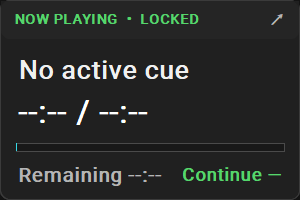
MINI mode gives you the essentials in a small always-on-top window
Useful when audio, lighting or video software is taking over the screen
06 / USE CASES
Keep the Mac backstage and operate from a Windows laptop in the house
Watch the current cue and remaining time without touching the QLab machine
Keep MINI mode open while mixing, programming or switching video
Turn an existing Windows PC into a simple QLab control station
07 / SETUP
No dedicated control system required
If both machines are on the same network, you are most of the way there
Use wired LAN or Wi‑Fi for the Mac and Windows PC
Allow OSC control in QLab settings
Press Connect in StageQ
Your cue list appears automatically
An illustrated setup guide is included in the app
08 / ROLE
Keep programming and show operation separate
It makes the live screen quieter and easier to trust
09 / REQUIREMENTS
StageQ is an independent third-party application
It is not affiliated with or endorsed by Figure 53, QLab or Elation Professional
QLab itself and the Mac running it are not included
10 / GET STAGEQ
Choose the Microsoft Store version or the EXE installer
Either way, you get 7 days to try it in your own setup
7-day free trial included. Pay once.
If it fits your workflow, buy once and keep using it11 / FAQ
Yes
QLab stays running on the Mac while StageQ lets a Windows PC monitor cue lists, select cues, and run GO, STOP and Panic during a show
Yes
Enable OSC Access in QLab on the Mac, then connect the Mac and Windows PC to the same network
Yes
StageQ is designed for monitoring and basic QLab control from front of house, a tech desk, a control booth, or another Windows position
No
QLab still runs on the Mac
StageQ gives you a Windows-side control and monitoring screen
No
Build and edit the workspace in QLab
StageQ is for checking, following and operating during the show
No
Put both machines on the same wired LAN or Wi‑Fi network
StageQ is built around QLab 5
Please check the release notes for final compatibility details
QLab control runs on your local network
Internet access is only needed for purchase, installation and updates